The Sky Chart
The Sky Chart view is the primary screen of Starry Night. It consists of the Status Bar at the bottom, the main Sky Chart in the middle, and the Toolbar along the top.
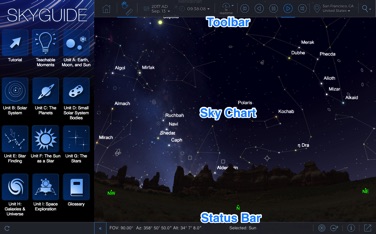 Starry Night Web User Interface.
Toolbar: The Toolbar contains controls for Date, Time, Time Flow, Location, and Search.
 Starry Night Toolbar Controls.
Status Bar: This bar displays the current viewing direction, field of view, and distance from the selected object. In addition it contains controls to toggle the SkyGuide panel and to Center, Orbit and display Object Info for the current selected object.
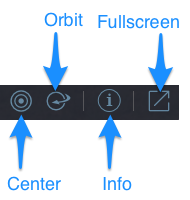 Starry Night Status Bar Controls.
Sky Chart: The Sky Chart shows an accurate depiction of the sky. The Sky Chart shows the location of the stars, planets, and deep sky objects (star clusters, nebulas, and galaxies) as seen from your date, time, and location.
Navigating the Sky Chart
The horizon, which divides the earth from the sky, has the cardinal directions (east, northeast, north, etc) marked.
Click the chart and drag to change the direction you are looking in the sky. Use the mouse wheel to change the field of view shown in the chart. You can zoom the field of view from 180 degrees, showing you the whole sky at once, down to 0.1 arc minute—about the average size of Mars as seen from Earth.
You can also zoom in or out by holding down on the + or - buttons found on the lower right corner of the Sky Chart.
As you drag or zoom the chart, the current coordinates of the chart's center, and the width and height of the field of view, are displayed in the Status Bar located at the bottom of the chart.
Click an object on-screen to select it. If there are multiple objects next to each other and the first click selects the wrong object, click again and Starry Night will select an alternate object nearby. Once you have selected an object, click the Info button in the Status Bar to bring up the Object Info view. The Object Info view shows numerical data for the object, as well as English-language descriptions and images for many of the brighter objects in the sky.
Navigating the Sky Chart - Touch Devices
Touch the chart and drag to change the direction you are looking in the sky. Use the standard two-finger pinch gesture to change the field of view shown in the chart.
You can also zoom in or out by touching and holding your finger down on the + or - buttons found on the lower right or left corners of the Sky Chart.